

Sage Intacct offers a deep and flexible reporting toolkit, and with the right approach, you can turn data into clear, meaningful insights.
One of the things I love most about Sage Intacct is how easy it can be to create clear, meaningful financial reports for all your stakeholders. CLA has shared a lot of great content around financial reporting in Sage Intacct over the years, but I still find many users aren’t taking full advantage of everything Sage Intacct has to offer.
In this post, I’m highlighting some of my favorite reporting resources to help you get more out of your financial reports and take them to the next level. Be sure to check out the links throughout the blog if you want to dive deeper into any of the topics.
Building financial reports in Sage Intacct
The three main components of financials report are structure, configuration, and format. When I need to design a financial report, I always think of structure first. What rows and columns do you want to display on your financial report? Standard financial reports such as Statement of Activities or Statement of Financial Position display rows as group of accounts, but you can also create reports with dimensions as rows.
The easiest way to start the design process for a new report is actually outside of Intacct. Deciding on your desired “roll-up” of rows, frequently accounts or groups of accounts, prior to creating the report in Intacct can save you time. I like to use Excel for this, but you can use any tool you want to capture your data.
Column configuration allows you to select whether you show actual, budgets, variances, or calculations in each column. In conjunction with the column type, you can choose a reporting period and reporting books.
The Expand by time period or dimension option lets you easily expand a single column into multiple columns. For example, with a standard Statement of Activities, you sometimes want to see one consolidated column of revenues and expenses. Other times, you may want to see the columns broken out by department, function or some other dimension. With the Expand by option, you can make this change with a click of a button. Want to expand time period from annual to monthly for your consolidated financials? This is just as easy.
After configuring your rows and columns, formatting helps make your report easier to read and more visually engaging. In addition to standard formatting options, conditional highlighting can be used to flag values meeting predefined criteria.
Leveraging Dimension Groups and Structures are a great way to add flexibility to your financial reports by creating custom dimension groupings. You can use Dimension Groups in report and dashboard filters, and Dimension Structures to display those groupings directly in rows or columns of financial reports.
If you know how to create basic columns, but you get overwhelmed when trying to do something fancier, check out Sage Intacct Financial Report Writer – Clever Columns to Compare Data to see how you can create a report displaying each expense row as a percentage of total expenses.
Expanding reporting flexibility with Sage Intacct user-defined books
Did you know Sage Intacct has a multi-book architecture allowing you to set up user-defined books? These books add another layer of flexibility to your reporting. The schools I work with most often use user-defined books to track purchase encumbrances (commitments) and allocations, but they can be used for many different purposes. When building financial reports, you can choose whether to include these books on a standalone basis, combine them with your main financial books, or exclude them altogether, depending on the story you want your report to tell.
Some schools need to run financial reports on both a FASB and GASB basis. If your main set of books is based on FASB guidelines, you could set up a user-defined book, GASB Adjustments, to book journal entry adjustments to convert from FASB to GASB. You can choose when you run your reports if you want to see just FASB basis or GASB (FASB with adjustments).
Validating your Sage Intacct reports
After you create a report in Sage Intacct, the next step is to make sure the report is correct. If you have a financial statement you have already validated, you can compare your new report to the old report. I always like to compare my new financial reports back to a standard General Ledger report like a Trial Balance as well.
Many schools I work with need to create detailed financial reports, where the rows are Account Groups filtered by dimensions. Make sure you aren’t missing account/dimension combinations or double counting account/dimension combinations when building out these types of reports. If your financial report doesn’t tie back to your trial balance level detail, these Sage Intacct Tips can help you validate your financial reports.
Beyond the Trial Balance: Two standard GL reports worth revisiting
Have you ever wished you could filter the Trial Balance report for certain types of accounts like Income Statement or Balance Sheet accounts? While you can’t do this on the Trial Balance Report, the standard report in the General Ledger module called Account Balances offers this option.
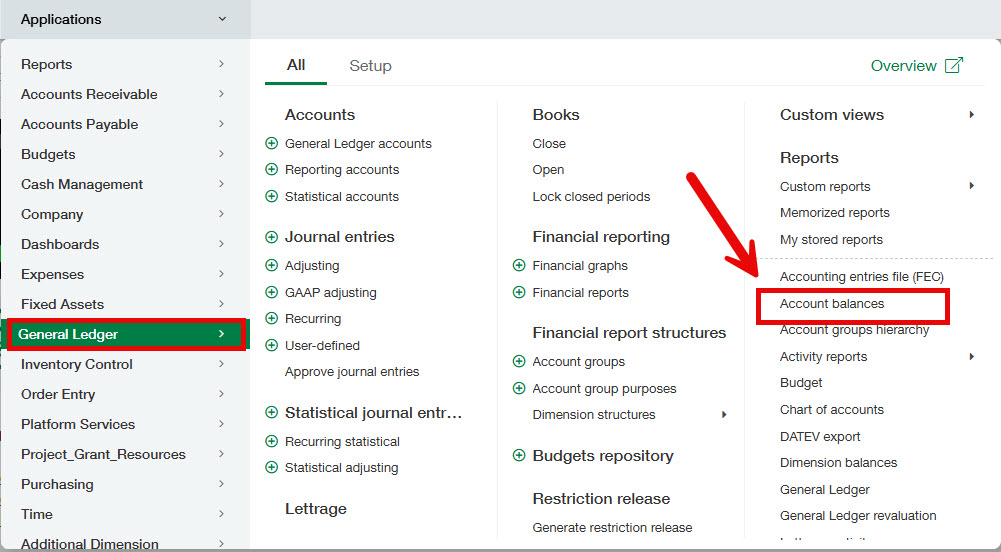
This report is often overlooked, especially by new Sage Intacct users. It offers far more filtering options than the Trial Balance, including the ability to filter by a single account, a range of accounts, or an Account Group.
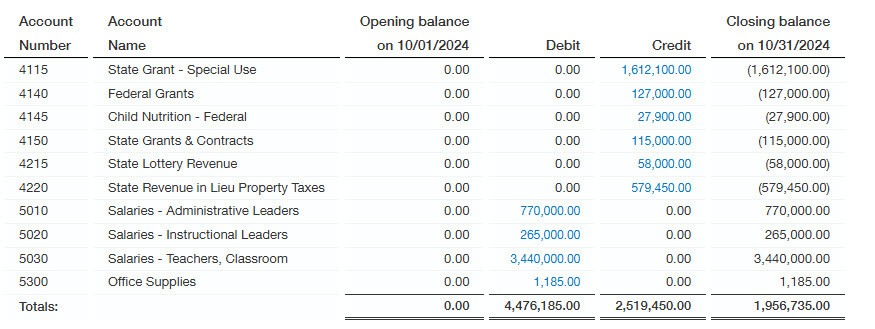
For example, if you only want to see Revenue and Expense accounts, you can select the appropriate range. Transactions can be displayed at either a summary or detail level. At the summary level, the report closely mirrors a trial balance, making it easy to tie total revenue and total expenses back to your financial statements. While the summary view is shown below, the report can also be run at a detailed level when you need deeper insight.
Another one of my favorite standard General Ledger reports is the Dimension Balances Report.
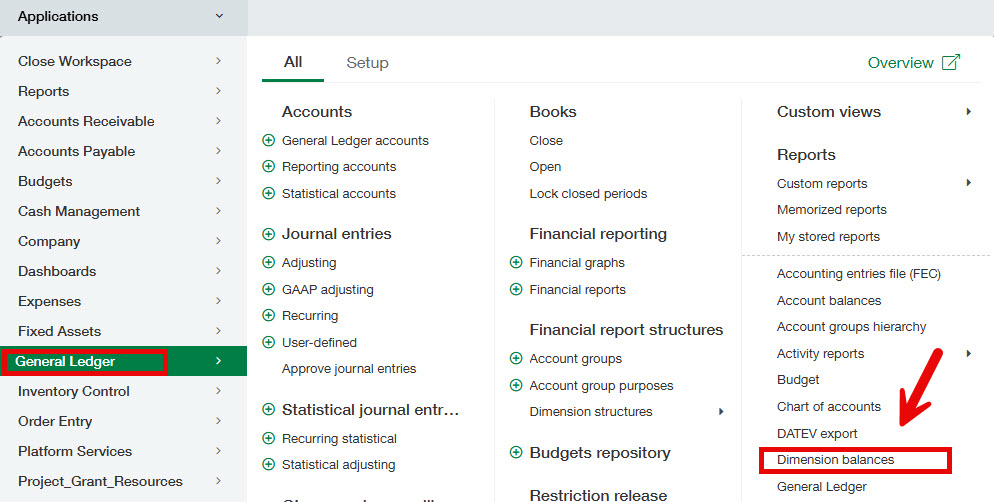
This is a summary report showing balances by account and dimension combinations. Below is an example of the side-by-side display option, but you can also run it in a cascaded format. You even can pull budget information into this dimension report.
The standard account and dimension filters are available as well as several other configuration options. If you haven’t used this report lately, try playing around with it to see how the different options can change what the report looks like.

Pro tip: If you want even more ways to create a trial balance, you can also Create a 24-Month Trial Balance in One Click.
Statistical accounts
Statistical accounts are a powerful yet often underused reporting tool. Statistical accounts in Intacct are used to track nonfinancial data in Intacct such as headcount, students and square footage. Statistical accounts add critical layers of insight that may otherwise go unseen, allowing you to bring operational and financial data together for a more complete picture of your school as demonstrated in this blog Sage Intacct Statistical Accounts in Financial Reports. You can even perform calculations with the Statistical accounts to add metrics to your reports and dashboards like Average Salary per Employee, Expenditures per Student, or Student-to-Employee Ratio.
Tracking restricted net assets
When I work with new schools implementing Sage Intacct, I often get a lot of questions on how to track restricted and unrestricted net assets in Sage Intacct. Setting up separate dimensions for restrictions and funding sources enables you to automate this process and release restrictions via journal entry, nonprofit restriction release, or leveraging the allocation module as described in these two blogs.
- Using Sage Intacct to Track Restricted Net Assets: Part 1
- Using Sage Intacct for Restricted Net Assets: Part 2 - Restriction Release
Build better reports with the Sage Intacct Custom Report Wizard
Have you ever generated a report in Sage Intacct only to be surprised by how much data was missing? The Sage Intacct Custom Report Wizard provides you access to more advanced reporting capabilities than standard list views by allowing you to include related objects.
When you create a new custom report, Intacct walks you through the process using the Custom Report Wizard. The most important step is selecting the right primary data source.
A common custom report schools often build is a Positive Pay report that’s exported to Excel and uploaded to the bank’s website. For this report, the primary data source is the AP payment object.
If you’re customizing an Accounts Payable aging report, the primary data source would instead be Vendor aging report. Sage Intacct offers a wide range of primary data sources, so if you haven’t explored custom reports yet, I recommend testing them out and experimenting with the different options. If the report isn’t quite right the first time, you can always edit it and run it again — and if it still doesn’t work, you can simply delete it and start fresh.
Unlock the full power of Sage Intacct reporting
Sage Intacct offers a deep and flexible reporting toolkit, and with the right approach, you can turn financial and operational data into clear, meaningful insights for every audience. I encourage you to explore the resources linked throughout this post, experiment with new report configurations, and take advantage of the powerful reporting features available to you. With a little curiosity and creativity, your reports can do far more than just balance — they can tell a story.
How CLA can help schools use Sage Intacct?
- Need help with reporting features or learning more about Sage Intacct for schools? Reach out to CLA's Sage Intacct team
- Also follow our 2026 Sage Intacct Monthly Webinar Series and Sage Intacct blog for more helpful resources.