

There are different ways to manage credit card transactions for non-reimbursable expenses, depending on how your credit cards are used.
There are different ways to manage credit card transactions for non-reimbursable expenses in Sage Intacct, depending on how your credit cards are used. To decide which method works best, consider these questions:
- Do you use the credit card to pay company bills?
- Do you need to reconcile the card?
If the answer to both questions is no, enter the expenses as journal entries, debit the appropriate expense accounts, and credit the credit card liability account. Payments can also be recorded as journal entries.
However, if you answer yes to either question, it's recommended to set up a credit card in Sage Intacct and follow the monthly steps below to record, reconcile, and pay off credit cards.
Setting up credit cards in Sage Intacct
If the card is used for vendor payments and/or requires reconciliation with the credit card statement, it must be set up in Cash Management.
How do you create a credit card account in Intacct? The process is similar to adding a bank account, with a few differences. Navigate to Cash Management > Credit Card, then click the plus sign to add a new card.
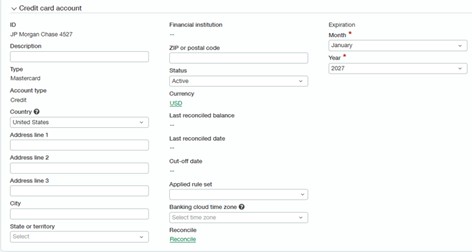
- Use a descriptive ID — commonly the bank name plus the last four digits of the card number.
- Select the card type (Visa, AMEX, etc.).
- Enter the expiration month and year.
- Other fields are optional.
In the accounting section:

- The credit card offset account should be a unique liability account in the General Ledger, dedicated to this card.
- The default entity is the entity that owns the card, similar to how cash accounts belong to a single entity.
- Assign a vendor ID for the credit card. Each card can only be linked to one vendor, which is used for the charge payoff process.
- Remaining fields are optional and can be selected from dropdown menus.
Recording credit card transactions in Sage Intacct
There are several methods for recording credit card transactions. The most suitable approach depends on the volume of transactions, the type of card (and integration capabilities), as well as any additional features needed to manage spending effectively within your organization.
For a small number of transactions
Manually enter transactions in Cash Management > Credit Card Transactions:
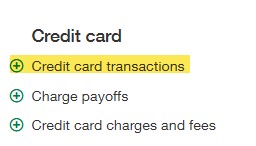
- Click the plus sign to add.
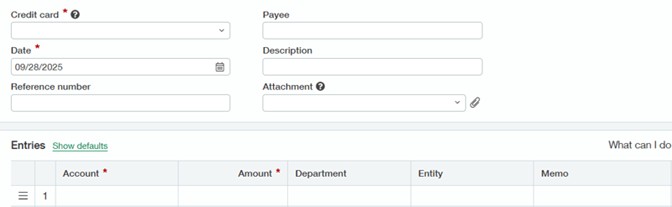
- Select the credit card from the dropdown.
- Enter the transaction date.
- Payee, description, and other details are optional.
- In the entries section, choose the GL expense account, enter the amount, and add dimensions as needed.
- Click Save when finished.
This approach works well for a limited number of transactions.
For multiple transactions
When dealing with numerous transactions, importing them is more efficient:
- Download the import template from Company > Setup > Import Data. The template for credit card transactions is under Cash Management.
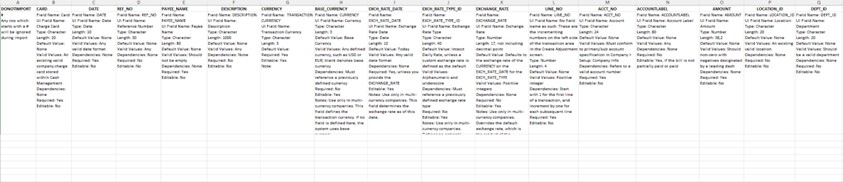
- Fill in the template with credit card ID, date, and optional payee details. Start line numbers at 1 for each transaction and increment for additional lines.
- Enter amounts and dimension details.
- Save the file as a CSV.
- Go to Cash Management > Credit Card Transactions, click Import, and upload the file.
- Select your file and click Import. You’ll receive an email with the results.
Bank feed option
If your credit card is linked to the banking cloud, Intacct can automatically download transactions. You can also create creation rules to automate posting. Refer to Sage Intacct Bank Feeds: Creation Rules blog for guidance on that topic.
Marketplace partners
Besides the options mentioned above, Sage Intacct credit card transactions can also be created through the API by marketplace partners such as Ramp or Expensify. These third parties frequently offer extra features, like automatic tagging of spending categories/dimensions, approval flows, and integrated spend controls.
Creating a charge payoff
Once all charge card transactions have been entered for the month, a Charge Payoff can be used to generate an AP bill to the credit card vendor.
This step is essential for proper reconciliation and for clearing activity from the credit card subledger. (Note: Posting a journal entry to record the payment won’t clear the aging and the credit card liability will grow exponentially. It’s recommended to select the “disallow direct posting” checkbox on the GL account).
To create a payoff:
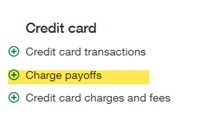
- Navigate to Cash Management > Credit Card Transactions > Charge Payoffs.
- Click the plus sign to add.
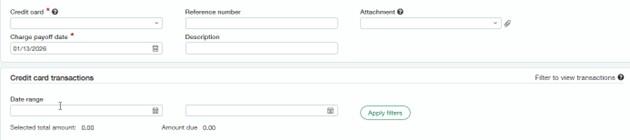
- Select the credit card and enter a date (this becomes the AP bill date).
- For the date range, enter only the ending date, which should match your credit card statement date.
- Click Apply Filters to display all transactions through that date not yet included in a payoff.
- Review the list. If any statement transactions are missing, exit without saving and record them first.
- Select all or specific transactions using checkboxes.
- Click Post to create the AP bill payable to the credit card vendor.
Tip: If you pay the full statement balance, the payoff total should match the amount due on the credit card statement. This serves as a soft reconciliation step.
Completing the credit card workflow in Accounts Payable
This is the final step — your liability won’t clear from the subledger until payment is posted.
- Navigate back to Accounts Payable.
- Select the All tab.
- Choose Pay Bills from the menu.
- In the Vendor Range section, select the Charge Card Vendor and click Apply Filter.
- Locate the Charge Payoff Bill.
- Select the bill for payment and enter the required Payment Options.
- Select Pay Now or Add to Outbox.
- Enter a Memo and Document Number, if needed.
- Click Save.
This completes the credit card processing in Sage Intacct.
How CLA can help with credit card processing in Sage Intacct
Inherited a credit card AP aging in Sage Intacct that doesn’t tie to the GL? Or if you simply need a little additional guidance or hands-on support, reach out to our CLA Sage Intacct team for help.