

With updates to Sage Intacct’s email delivery service, domain validation is now required to improve secure and reliable email delivery.
Following recent updates to Sage Intacct’s email delivery service, domain validation is now a required step to improve secure and reliable email delivery. Without a validated domain, system-generated communications, such as invoices, payment approvals, and financial reports, may be delayed, flagged as spam, or not delivered.
For finance teams, this is more than a technical configuration. It directly impacts billing cycles, customer communication, and operational efficiency.
Discover a structured, approach to domain validation to help your setup be completed correctly and perform reliably over time.
Objective: Verify trusted and verifiable email delivery
Before beginning the configuration, understand the purpose of domain validation.
Domain validation helps:
- Emails sent from Sage Intacct to be authenticated and trusted
- Your organization’s domain be recognized by receiving servers
- Email delivery activity be visible and traceable
Recommendation: Treat domain validation as part of your financial systems control framework, not just an IT task.
Step 1: Prepare the domain
Requirements
- A valid, purchased domain (e.g., company.com)
- Access to DNS host settings (typically managed by IT or a hosting provider)
If the domain hasn’t been created or configured:
- Validation can’t be completed as there is no DNS record to authenticate against
Common challenge
Finance teams initiate setup without confirming DNS ownership or access.
Recommendation: Confirm early who is responsible for DNS management and align on roles before proceeding.
Step 2: Configure the domain in Sage Intacct
Once your domain is ready, proceed with configuration within Sage Intacct.
Navigation path
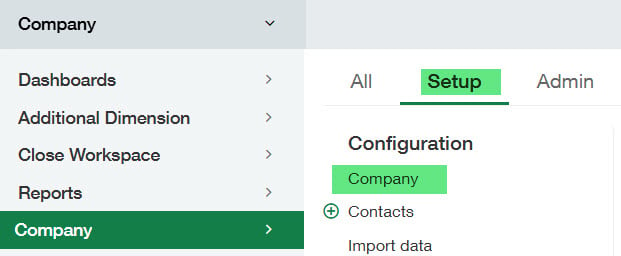
- Go to Company > Setup > Company > Security
- Click Edit
- Scroll to Email sender domain settings
- Select Add domain
- Enter the domain
- Click Authenticate domain
- Select Save
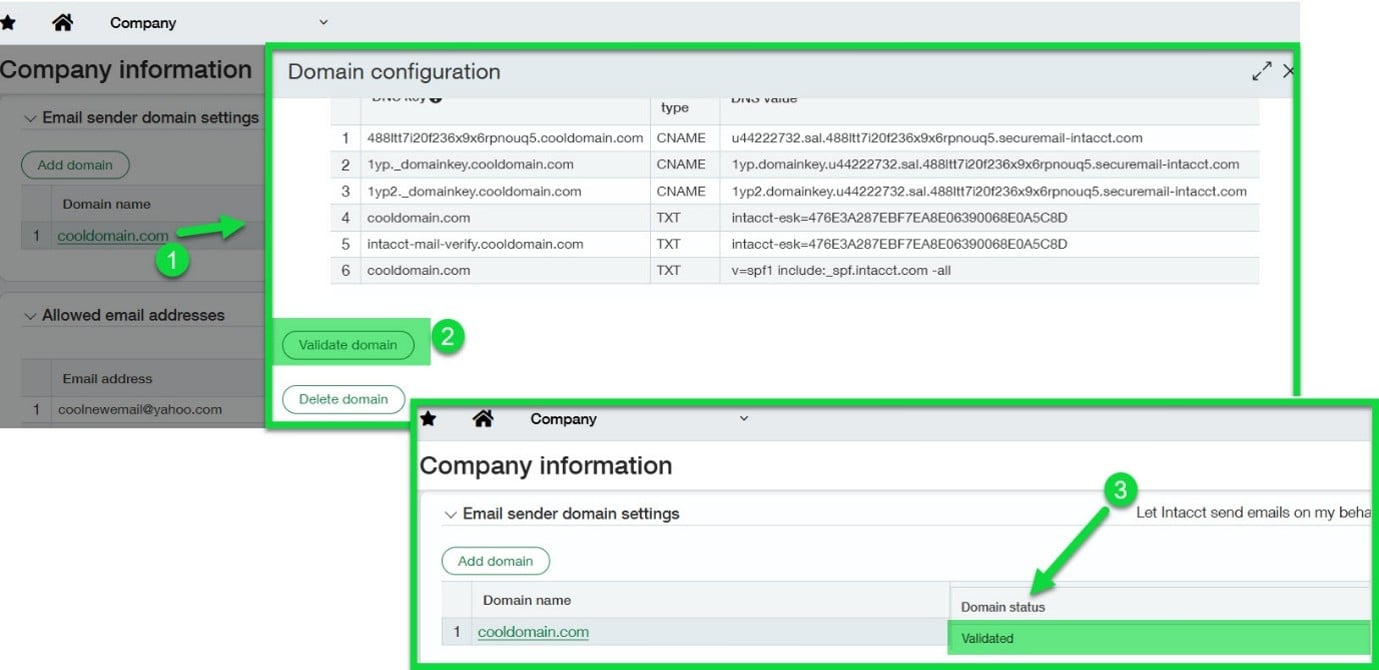
Sage Intacct will generate six DNS authentication records.
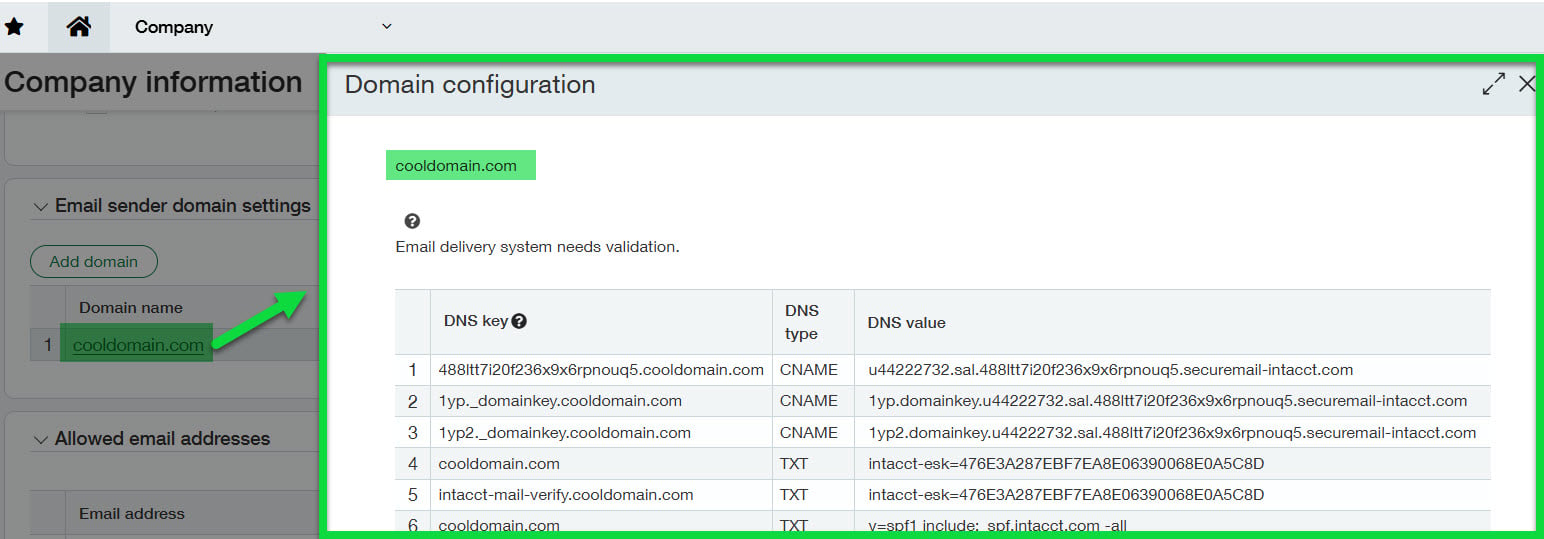
Complete the step: DNS entry
These records must be:
- Shared with your IT team
- Entered exactly into your DNS provider
Critical consideration: Accuracy
DNS entries must match exactly as provided.
- Use copy and paste only
- Avoid manual entry errors
- Verify formatting before submission
Recommendation: Even minor discrepancies (extra spaces or missing characters) can cause validation failure.
Step 3: Enable email delivery visibility
While DNS updates are being completed, configure system permissions to support monitoring and troubleshooting.
Permission setup
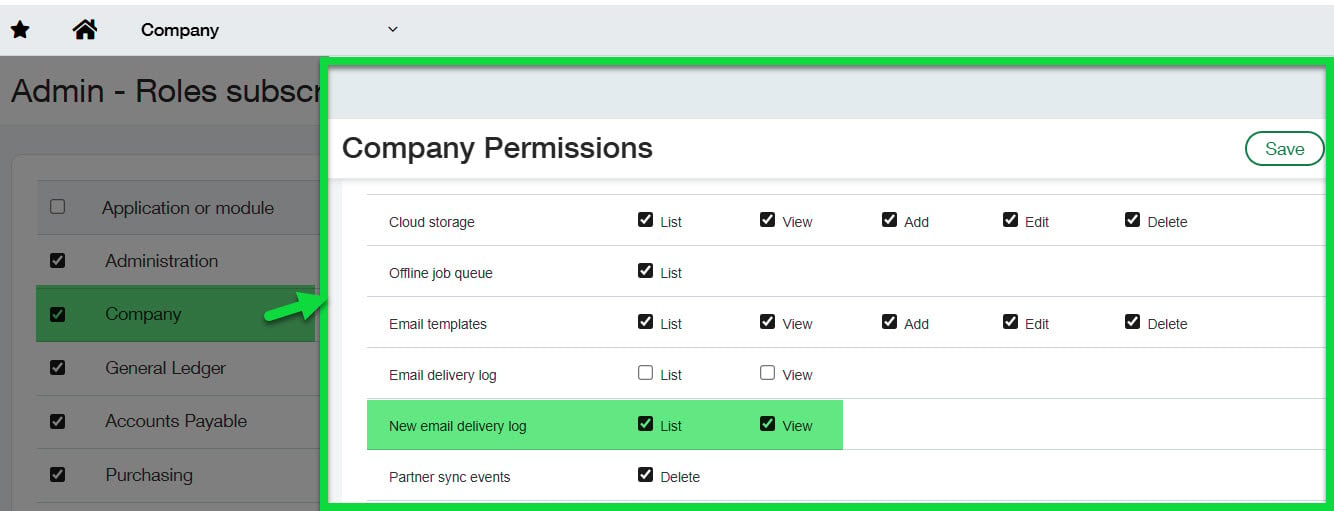
- Navigate to the Company module permission set
- Locate New email delivery log
- Grant List and View permissions to administrator users
- Extra step (Remove Email delivery log if selected)
This enables access to the new email delivery history report.
Why this matters
Without delivery visibility:
- Email failures may go undetected
- Users must rely on external confirmation to troubleshoot email errors
Recommendation: Enable visibility before validation completes to immediately verify results.
Step 4: Validate the domain
After DNS records are entered and confirmed by IT, return to Sage Intacct to complete validation.
Validation steps
- Go to Company > Setup > Company > Security
- Click Edit
- Locate the domain
- Select Validate
Timing considerations
- DNS propagation may take up to 72 hours
- Validation often completes sooner depending on the provider
Once complete:
- Status updates to validated
Recommendation: Allow additional time after validation for system synchronization before testing.
Step 5: Monitor email delivery
After validation, shift focus from setup to ongoing monitoring.
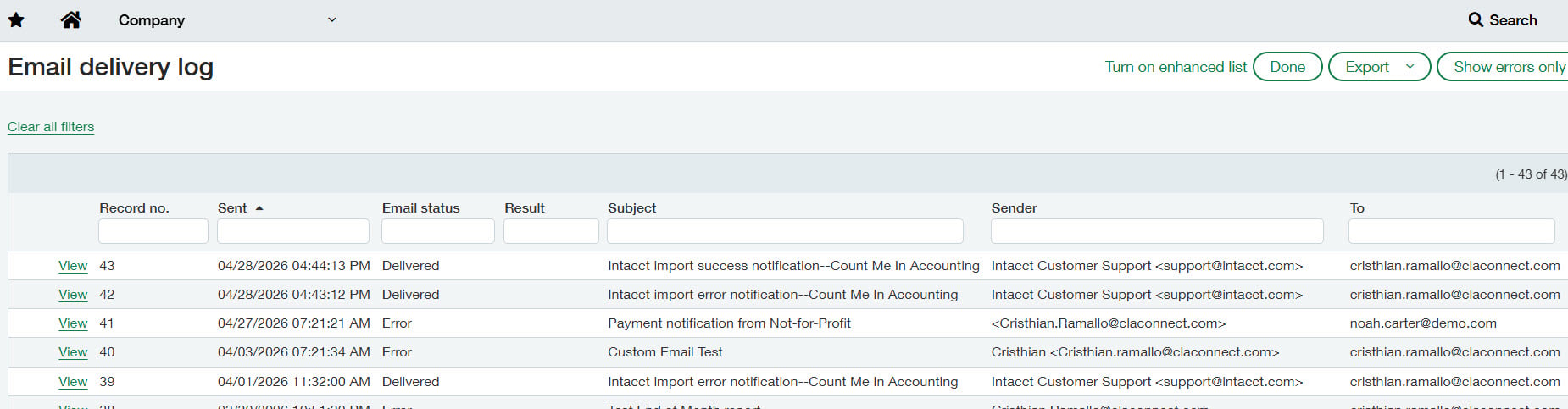
Use the email delivery history report
This report enables you to:
- Track email status (sent, delivered, failed)
- Identify delivery issues
- Troubleshoot specific transactions
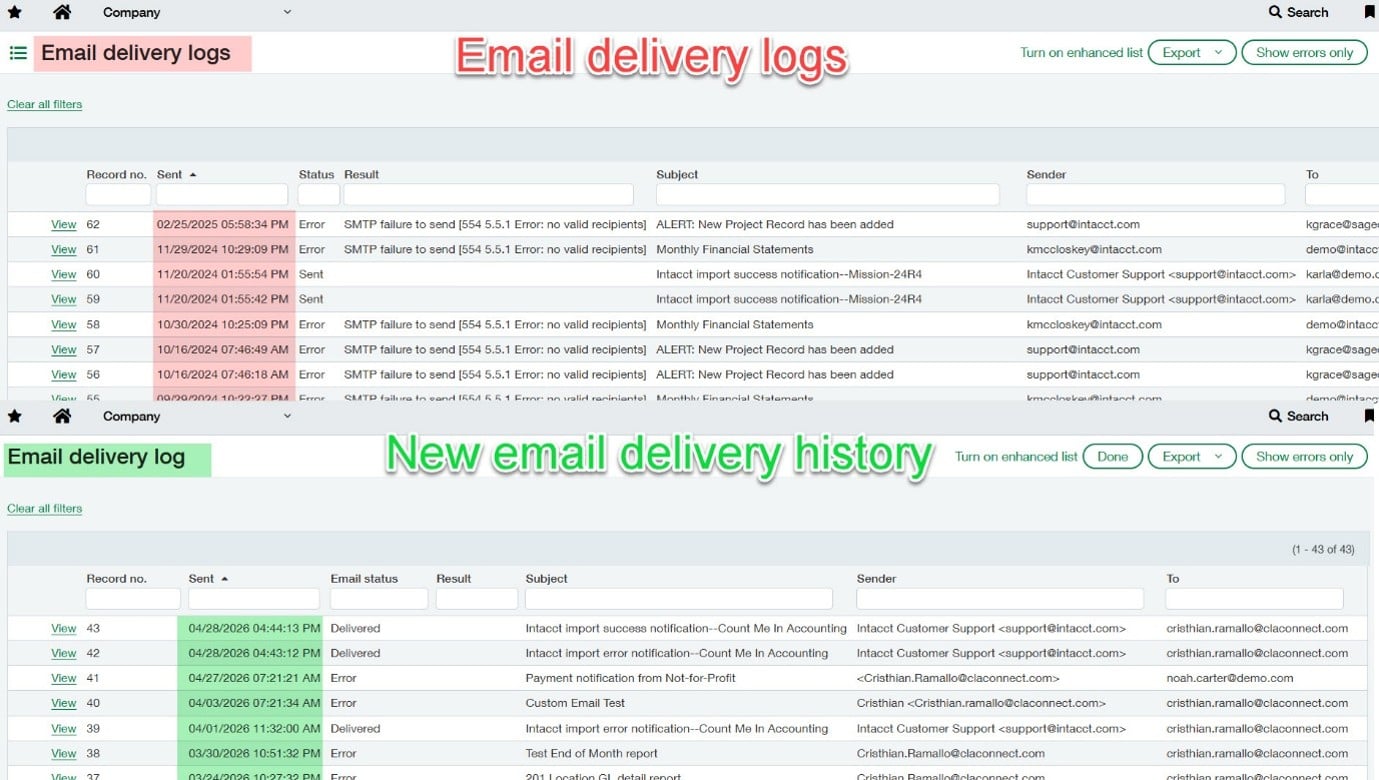
Difference between delivery logs
Although both reports look similar, there are some important distinctions to note:
- Title
- “Email delivery log” belongs to the new email delivery history report.
- “Email delivery logs” belongs to email delivery history report.
- Date
- The new email delivery history report is currently tracking all email communications, so you will see the most recent activity reflected in this log.
- The email delivery logs report stopped tracking emails in 2025, so you will not see any recent delivery attempts.
Recommendation: Incorporate periodic delivery reviews (monthly or quarterly) rather than relying on reactive checks.
Common pitfalls and mitigation strategies
Incorrect DNS entries
Even minor formatting errors prevent validation.
Mitigation: Use copy/paste and confirm entries before validating.
Lack of cross-functional coordination
Finance and IT teams operate independently.
Mitigation: Define ownership and communication early.
Limited visibility into email delivery
Teams can’t verify delivery outcomes post-validation.
Mitigation: Enable delivery logs prior to validation.
Key takeaways
Domain validation is a critical control point in Sage Intacct supporting reliable financial operations. When implemented effectively, it helps:
- Consistent and timely customer communication
- Reduced risk of failed or delayed emails and spoofing protection
- Improved visibility into system-generated activity
Approaching this process with a structured, systems-focused mindset helps prevent downstream issues and supports long-term scalability. For questions or support please reach out to your CLA Sage Intacct team.