

Whether you're allocating expenses, salaries, or grants, Dynamic Allocations can help replace spreadsheets with a more efficient process.
Does your school rely on a massive allocation spreadsheet that only one person understands — and everyone else avoids? The Sage Intacct Dynamic Allocation module can help you retire that workbook for good, replacing manual calculations with automated, repeatable processes.
One of the strengths of Sage Intacct is its ability to scale with your school's needs. You can add modules providing real value and avoid paying for functionality you don't need. If allocation spreadsheets are consuming time and creating risk, dynamic allocations may be the next step in your automation journey.
Before we dive in, it's important to distinguish dynamic allocations from transaction allocations. Transaction allocations are included in Sage Intacct's core functionality and allow predefined allocations to be applied as transactions are entered, for example, on bills or journal entries.
Dynamic allocations, on the other hand, are leveraged via an add-on module designed for recurring allocation processes running monthly, quarterly, annually, or on demand. They allocate expense pools based on financial balances or statistical data, making them ideal for common school scenarios such as allocating fringe benefits based on salary expense by department, function and/or grant.
Configure an allocation definition
When creating an allocation definition, you're telling the system four things:
- How dimensions should be treated on the allocation entry
- What pool of dollars should be allocated
- How those dollars should be distributed
- Where the allocation entry should be posted
Let's look at each section of the allocation definition. For a deeper dive into configuration details, see our previous blog on creating account allocation definitions.
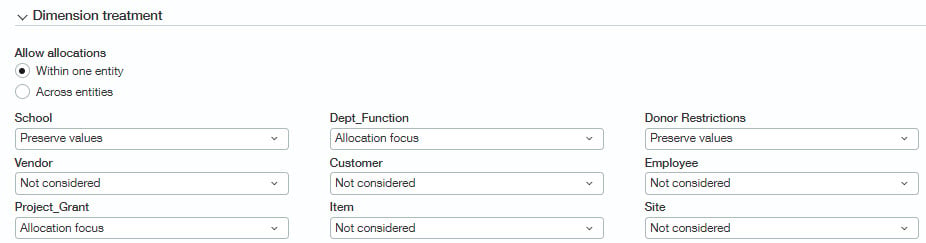
Dimension treatment
Dimension treatment is where you decide how the system handles each dimension on the allocation entry. Each dimension can be designated to be used in the allocation, preserved from the source, or excluded. For the project and employee dimensions, you can also select per dimension value, which creates a separate journal entry for each project or employee.
Source pool
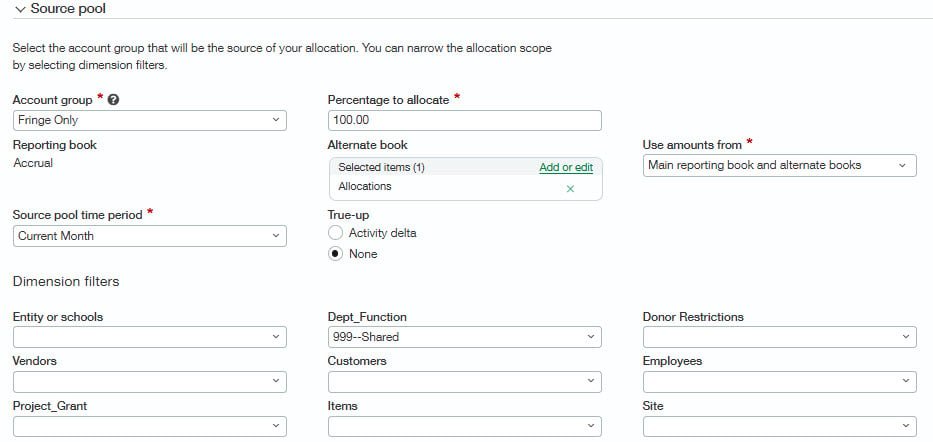
Source pool answers the question, “What do I want to allocate?” Think of it like filtering a general ledger detail report to identify the dollars to be allocated. In this section, you select the account and dimension filters defining the source amount.
For example, to allocate fringe expenses based on salary by department, you could create an account group including all shared fringe accounts, such as medical, dental, and long-term disability insurance and filter in a shared department used for capturing payroll costs prior to allocation.
Basis
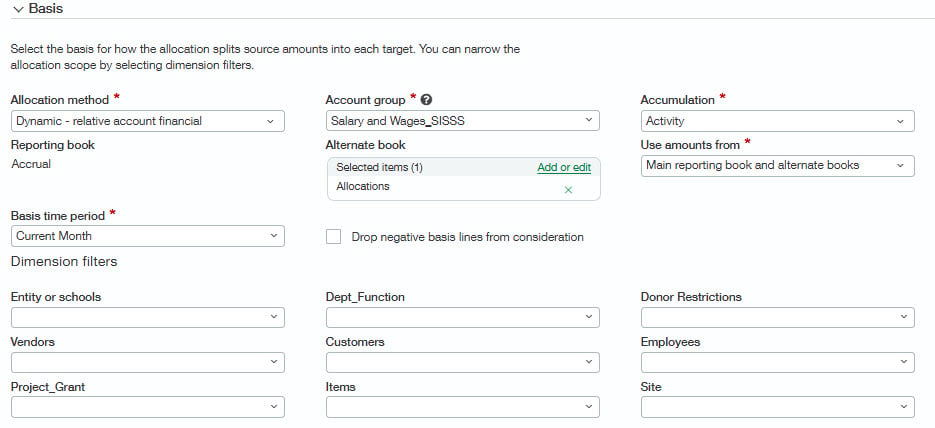
Basis determines how the allocation is calculated and can be driven by financial or statistical data. For example, allocating fringe costs based on salaries uses financial data, while allocating utilities by square footage uses data in statistical accounts.
Target entry
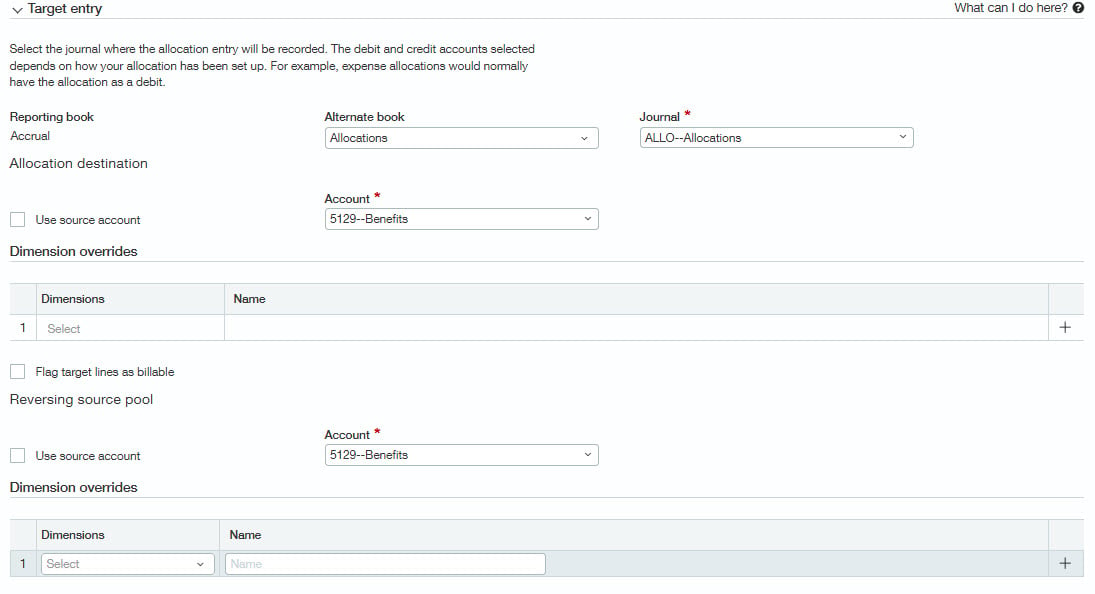
The target entry section tells the system where to post the allocation journal entry. Allocations first post to a user-defined book, but can be copied to another book, such as your accrual book, after they are generated.
If you enable use source account for the allocation or the reversal of the pre-allocation entry, you can allocate the account balances across dimensions while maintaining the original source account. If you don’t need that level of detail, you have the option of choosing the specific account for the allocation and a specific account for the reversal.
Generate allocation
When you are ready to run the allocation, click on generate allocation, enter the desired posting date, and the as-of date to indicate the time period for the source and pool basis. For more detailed steps on how to generate the allocation, review our blog about creating account allocation definitions.
Allocation impact report
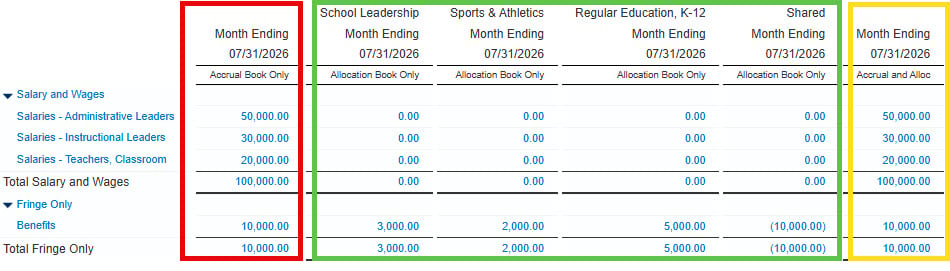
Because allocations post to the required user-defined book, you can easily run a report like the one below to see the full impact of the allocation. The first column (in red) shows the pre-allocation accrual book, the middle columns (in green) show the allocation by department in the user-defined book, and the final column (in yellow) combines the initial entry plus the allocation.
This layout lets you confirm beginning and ending balances tie out, while showing exactly how the amounts were allocated by department. A similar type of report can be created for other dimensions besides department. This is customizable on the columns tab in the financial report writer.
Allocation use cases for schools
With the foundational concepts in place, let's look at some practical ways schools use Dynamic Allocations. These are some of the most common scenarios, but the module’s flexibility allows organizations to support a wide variety of allocation needs.
Allocate centralized expenses to specific schools or departments
Allocate shared expenses across schools or departments using enrollment, FTE, or other metrics maintained in statistical accounts. Because the allocation is driven by statistical data, it automatically adjusts as enrollment or staffing changes, eliminating manual updates.
Distribution of employee salaries and benefits to grants/projects
Dynamic Allocations can automate the distribution of salaries and benefits across grants and projects based on time and effort, including Title I, Title II, IDEA, and state grants. This is especially useful when allocation details aren’t captured in payroll or need to be adjusted after payroll has been processed.
Statistical accounts can store employee time-and-effort percentages by grant, making updates simple as funding or responsibilities change. Because the percentages drive the allocation, grant reporting stays accurate without reworking payroll entries. The per dimension value option is often a good fit for this scenario, allowing separate journal entries by project or employee.
Allocation of overhead/indirect costs to grants
Allocate overhead and indirect costs to grants using either a fixed rate or a direct-cost basis. This approach is often paired with Intacct's grant tracking and billing module, which can automatically gather eligible grant expenses and streamline the billing process. Allocation entries can be marked as billable and included on grant invoices.
Allocate facilities expenses by square footage
Allocate utilities, custodial costs, and other facility expenses based on square footage maintained in statistical accounts.
Food service/child nutrition allocation
Distribute shared cafeteria labor, food service supplies, and kitchen costs across sites based on meals served or student counts. This can support National School Lunch Program reporting and cost-per-meal analysis.
Special education/program-specific cost pooling
Allocate shared special education staff, therapists, or program resources across schools based on IEP counts or service hours. This can be helpful for state SPED reporting and Maintenance of Effort (MOE) calculations.
Development/fundraising allocation
Allocate shared fundraising and development expenses based on revenue, enrollment, or another appropriate allocation driver.
How CLA can help schools use Sage Intacct
These are just a few of the many ways schools can put the Dynamic Allocation module to work in Sage Intacct. The flexibility of allocation definitions makes it possible to automate a wide range of allocation scenarios, and allocation groups provide an easy way to manage and run multiple allocation definitions together.
Whether you're allocating expenses, salaries, grants, or facilities costs, Dynamic Allocations can help replace time-consuming spreadsheets with a more efficient, repeatable, and auditable process — giving your team more time to focus on analysis and decision-making rather than manual calculations.
- Looking for more information on Dynamic Allocations? Check out our on-demand webinar Mastering Dynamic Allocation in Sage Intacct.
- Need help with reporting features or learning more about Sage Intacct for schools? Reach out to CLA's Sage Intacct team.
- Also follow our 2026 Sage Intacct Monthly Webinar Series and Sage Intacct blog for more helpful resources.